Getting Started
This document will help you quickly get started with GitCode, including registration, login, creating a project, submitting code, etc.
Registration and Login
-
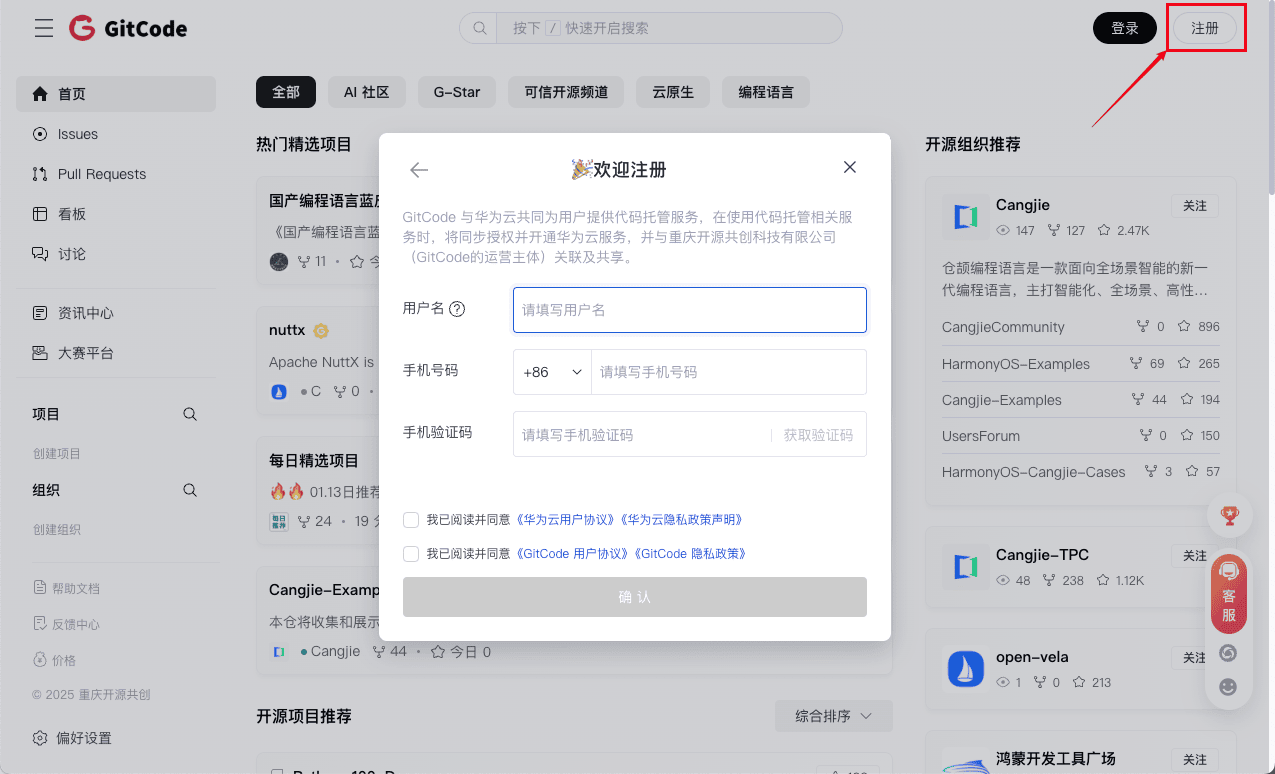
Visit the official website: Visit official website, click 「Register」 in the top right corner of the homepage, and fill in the information as instructed to register an account.
-
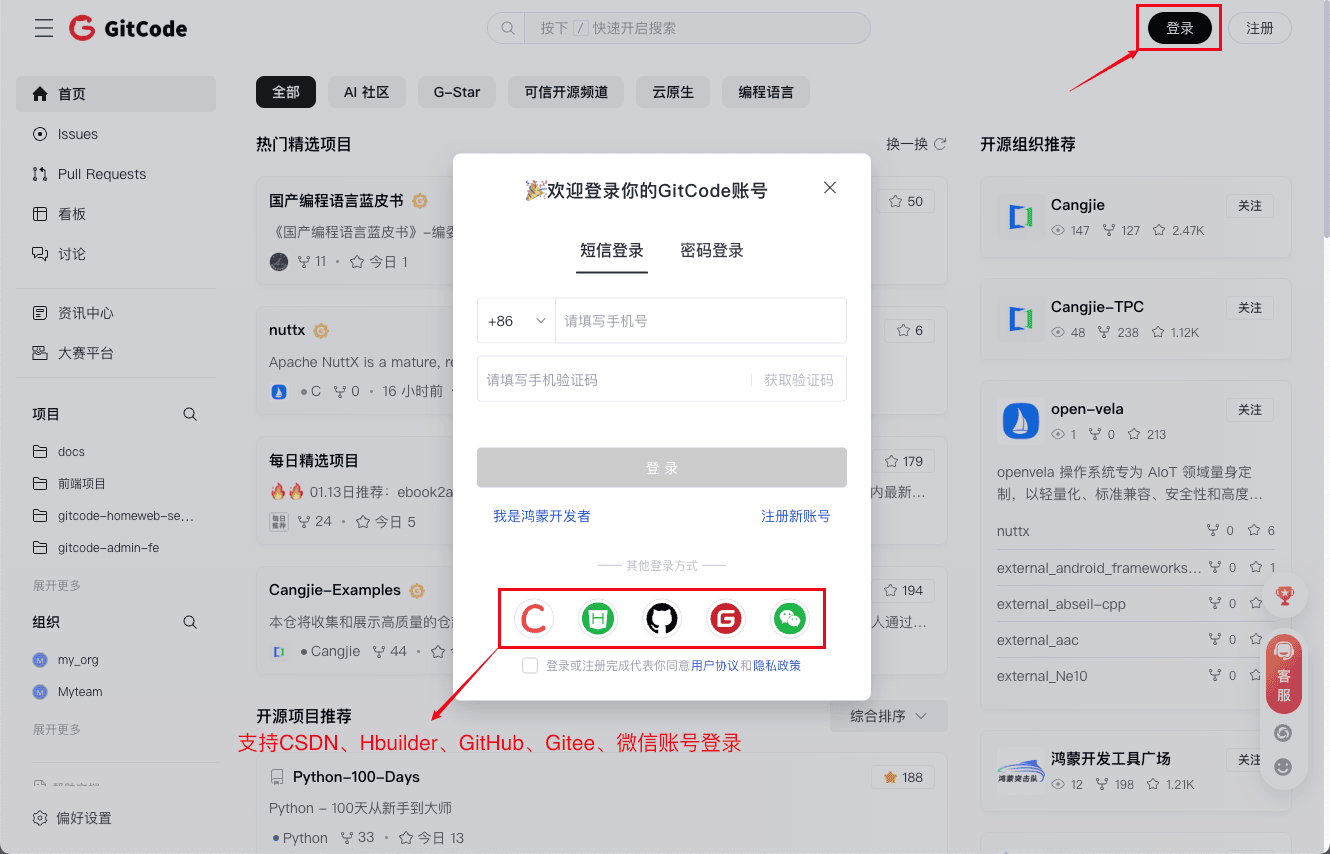
If you already have an account, click 「Login」 in the top right corner, and you can choose SMS login or password login. It also supports third-party account login such as CSDN, Hbuilder, GitHub, Gitee, and WeChat.
-
Here is the video tutorial content:
Creating a Project
-
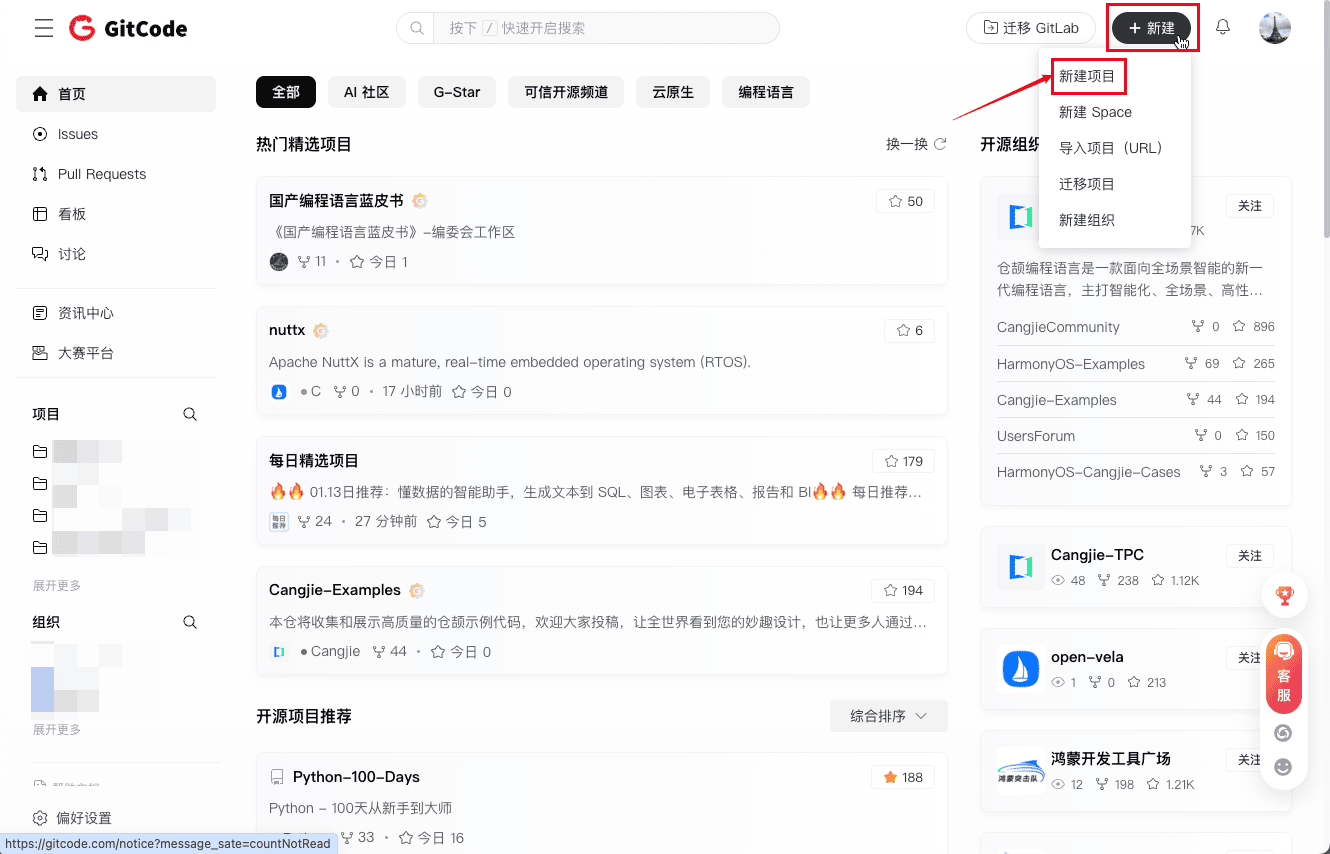
After completing registration or successfully logging in, click 「New」 in the top right corner of the homepage and select 「New Project」, users can create their own projects.
-
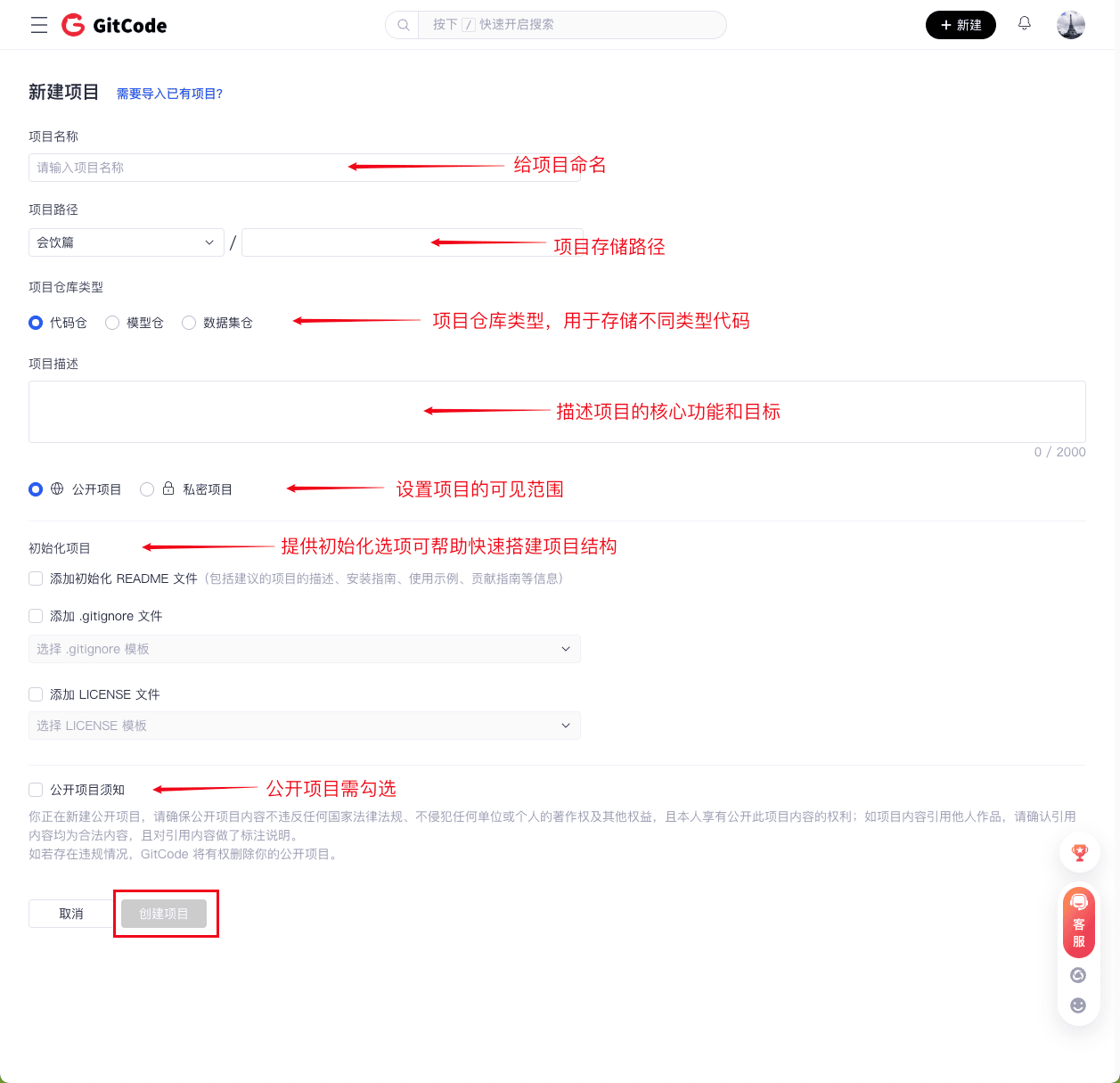
Explanation of some information that needs to be filled when creating a new project:
- Project Repository Type: GitCode supports different repository types for storing code and managing versions.
- Code Repository: Used for storing and managing the source code, script files, and related development resources of the project.
- Model Repository: Used for storing machine learning or deep learning model files and related information.
- Dataset Repository: Used for storing structured or unstructured data, usually the dataset required for AI/ML model training and evaluation.
- Set Project Visibility Scope: Control the access permissions of the project.
- Public Project: Everyone can access it, suitable for open-source projects.
- Private Project: Only project members can access it, suitable for enterprise or personal projects.
When choosing "Public" for an open-source project, be cautious about protecting sensitive information.
- Initialize Project: When creating a project, GitCode provides the following initialization options to help quickly set up the project structure:
- Add an initialized README file: The README is the home document of the project, used to introduce the project content, functions, and usage methods.
- Add a .gitignore file: Used to ignore files that do not need to be uploaded to the repository, such as local environment configurations, log files, compilation results, etc.
- Add a LICENSE file: The LICENSE file declares the usage rights and open-source license of the project.
-
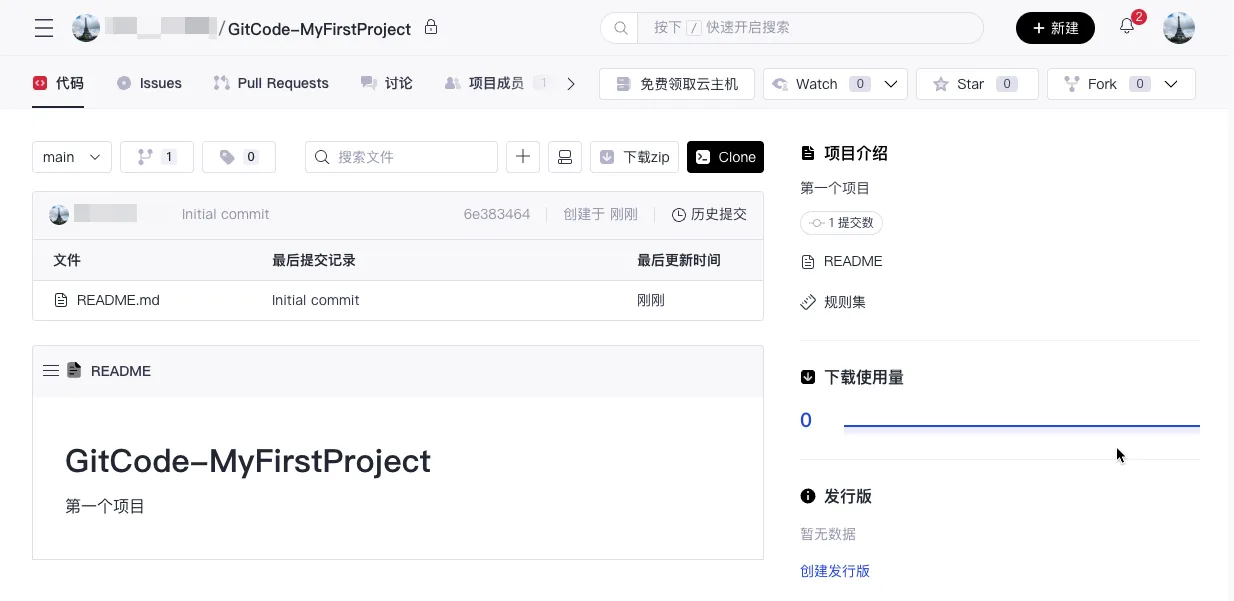
After filling in all the information, click 「Create Project」 to create your first project.
Submitting Code
After the repository is created, we can submit code through the following process:
-
Clone the Project Locally
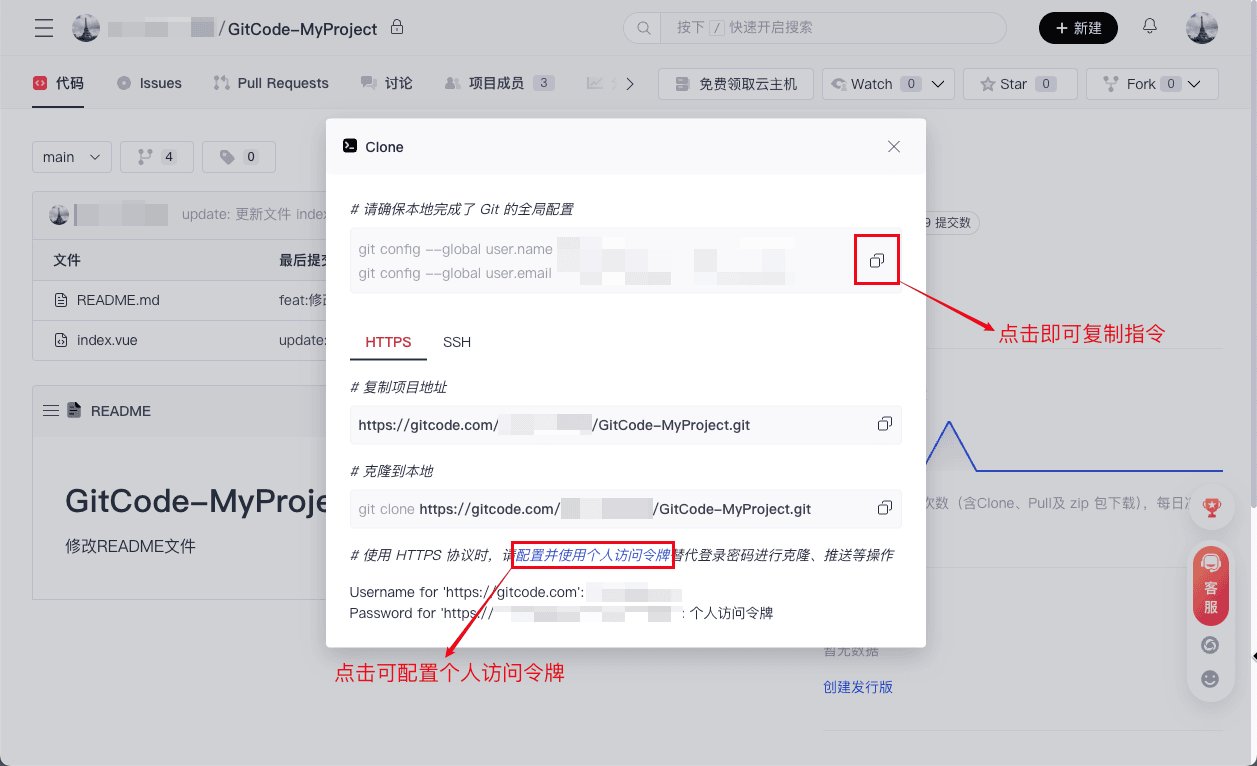
Before cloning the project, make sure that Git has been configured globally on your local machine:
git config --global user.name “Username or nickname”
git config --global user.email “Email address”
Clone the project address to your local machine:
git clone project address
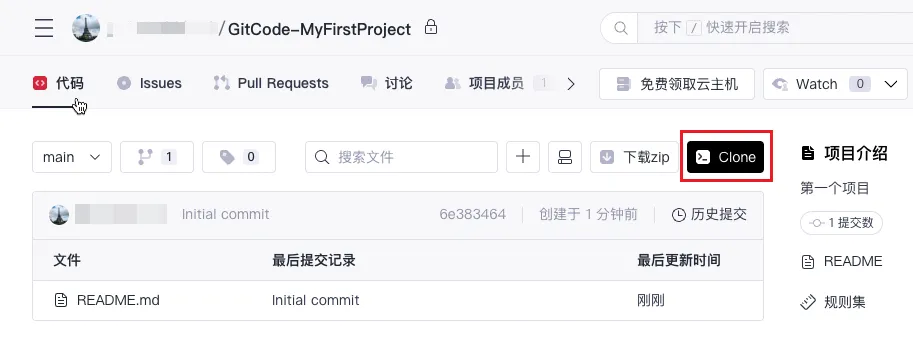
You can also go to the project page and click 「Clone」 to clone according to the instructions:
-
Create a Branch
In enterprise development or multi-person collaboration, we often create multiple branches.
- Execute the following command to create a new branch:
git branch <new branch name>   # Create a new branch
git checkout -b <new branch name>  # Create and switch to the new branch directly
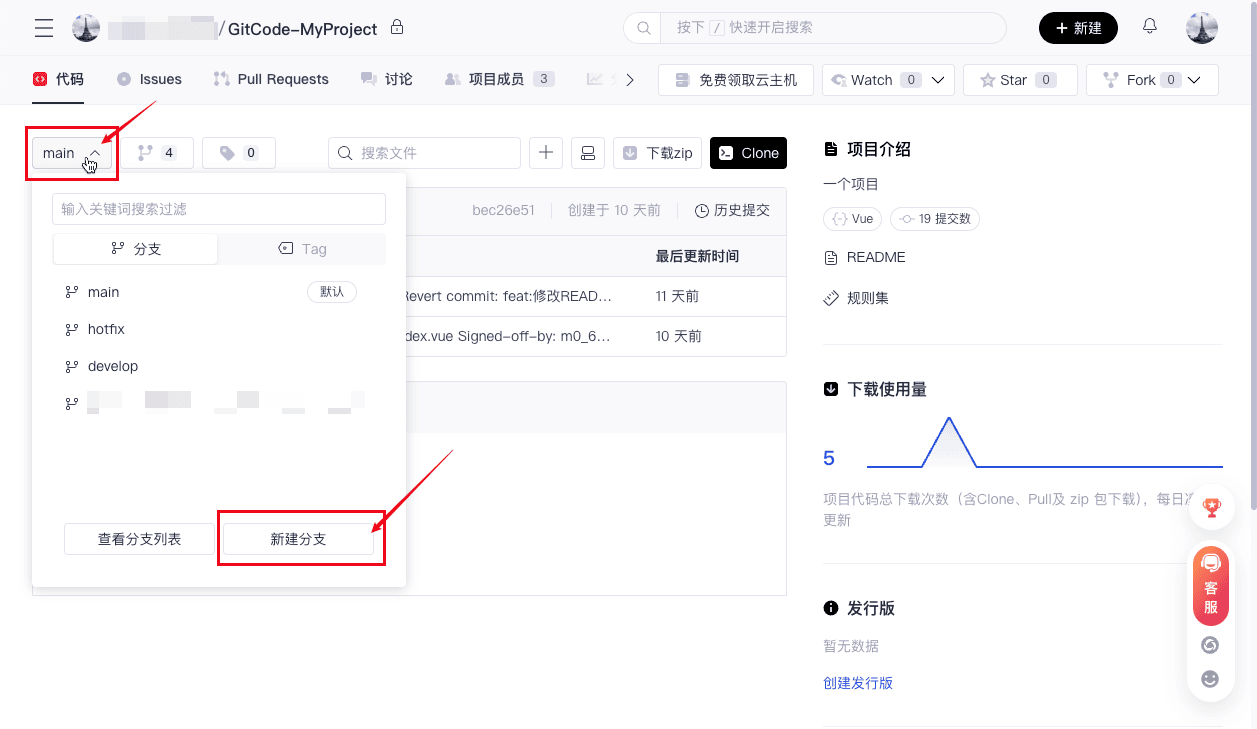
- You can also click the current branch on the project page and then click 「New Branch」 to quickly create a new branch:
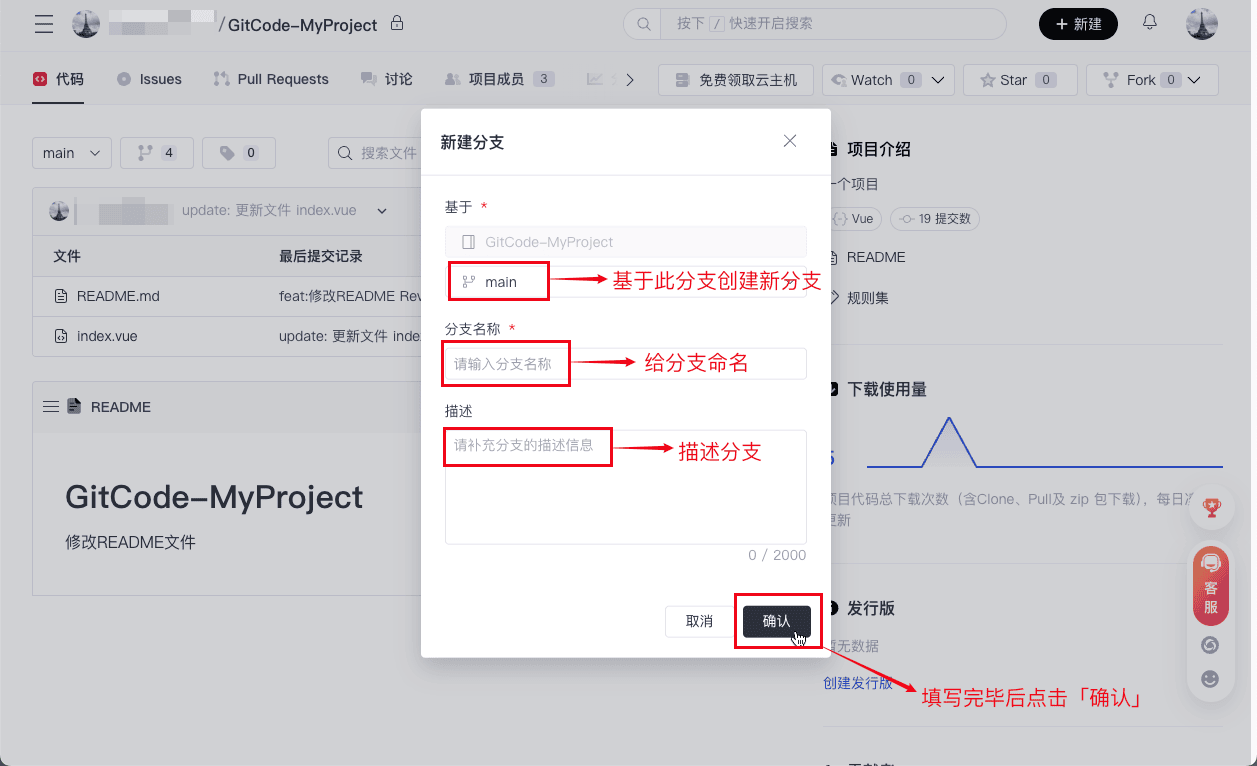
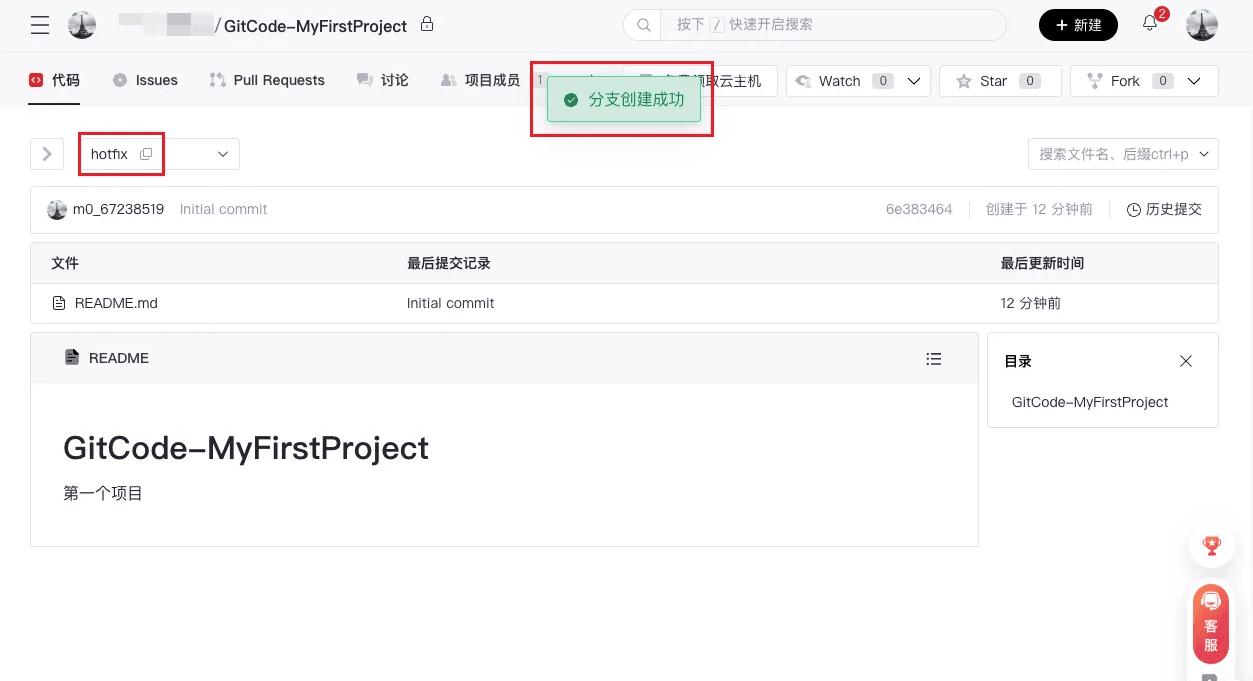
A successful branch creation indicates that a new branch has been created:
-
Modify Code and Submit
- Using 「VSCode」 to modify 「README.md」 file as an example:
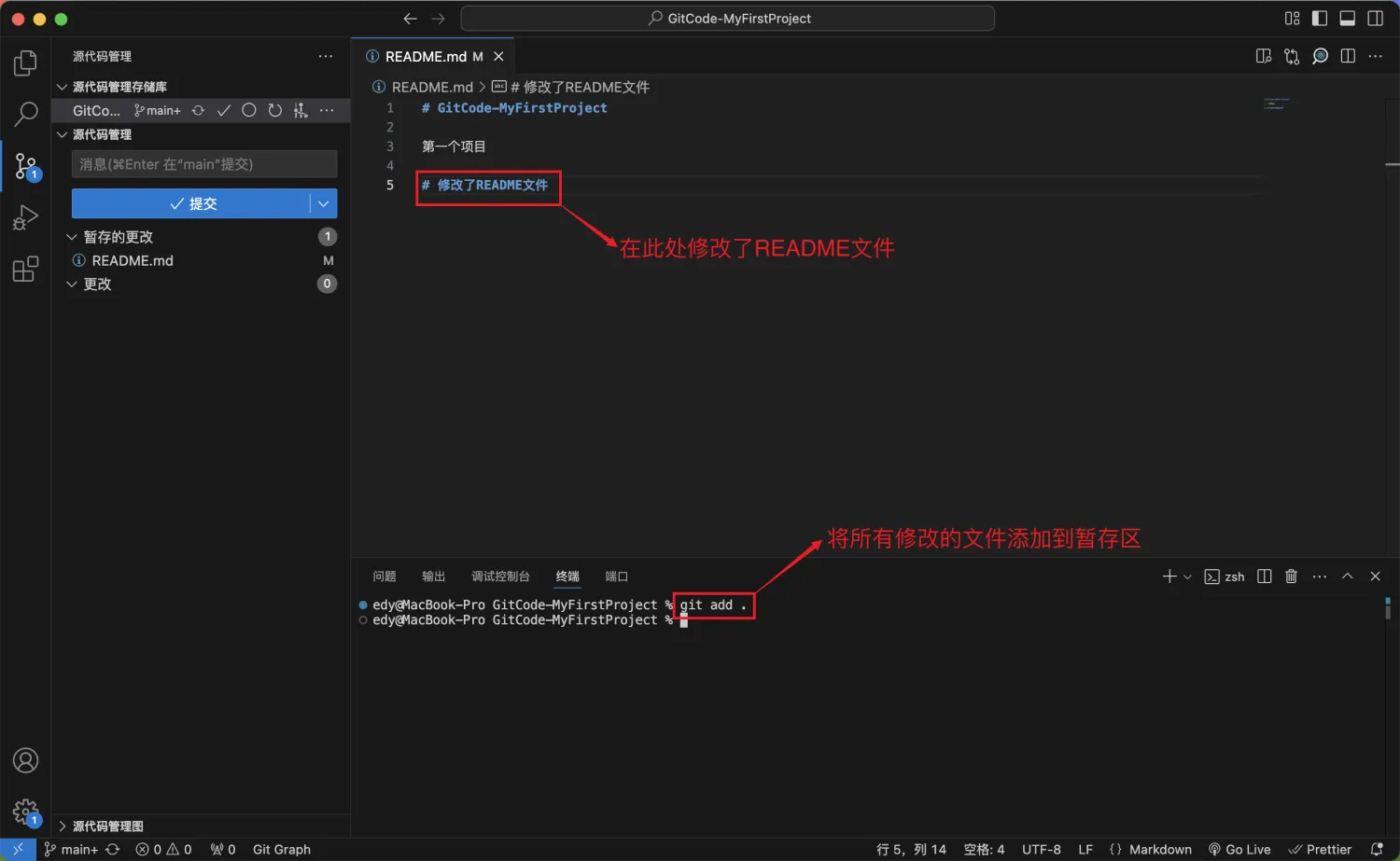
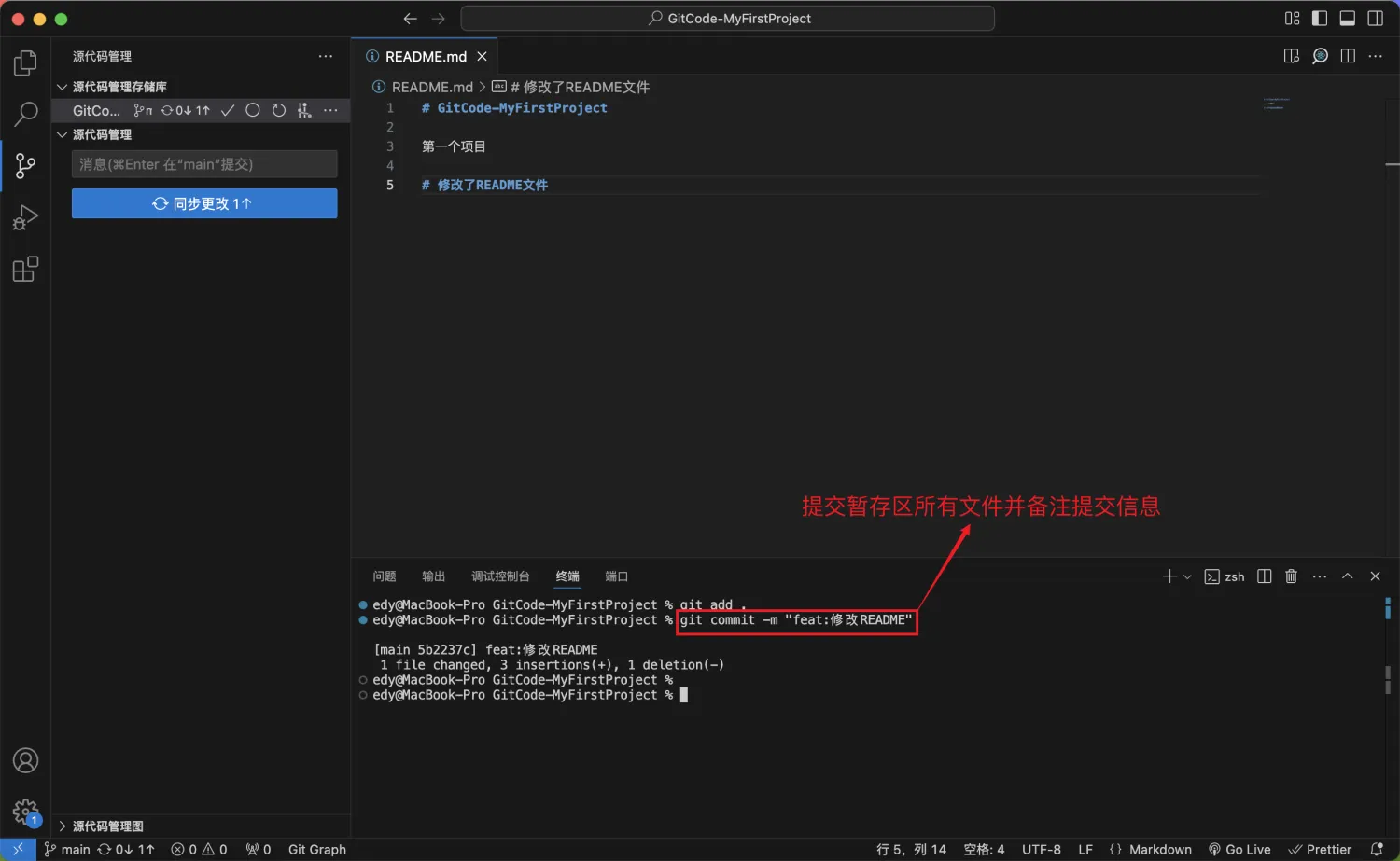
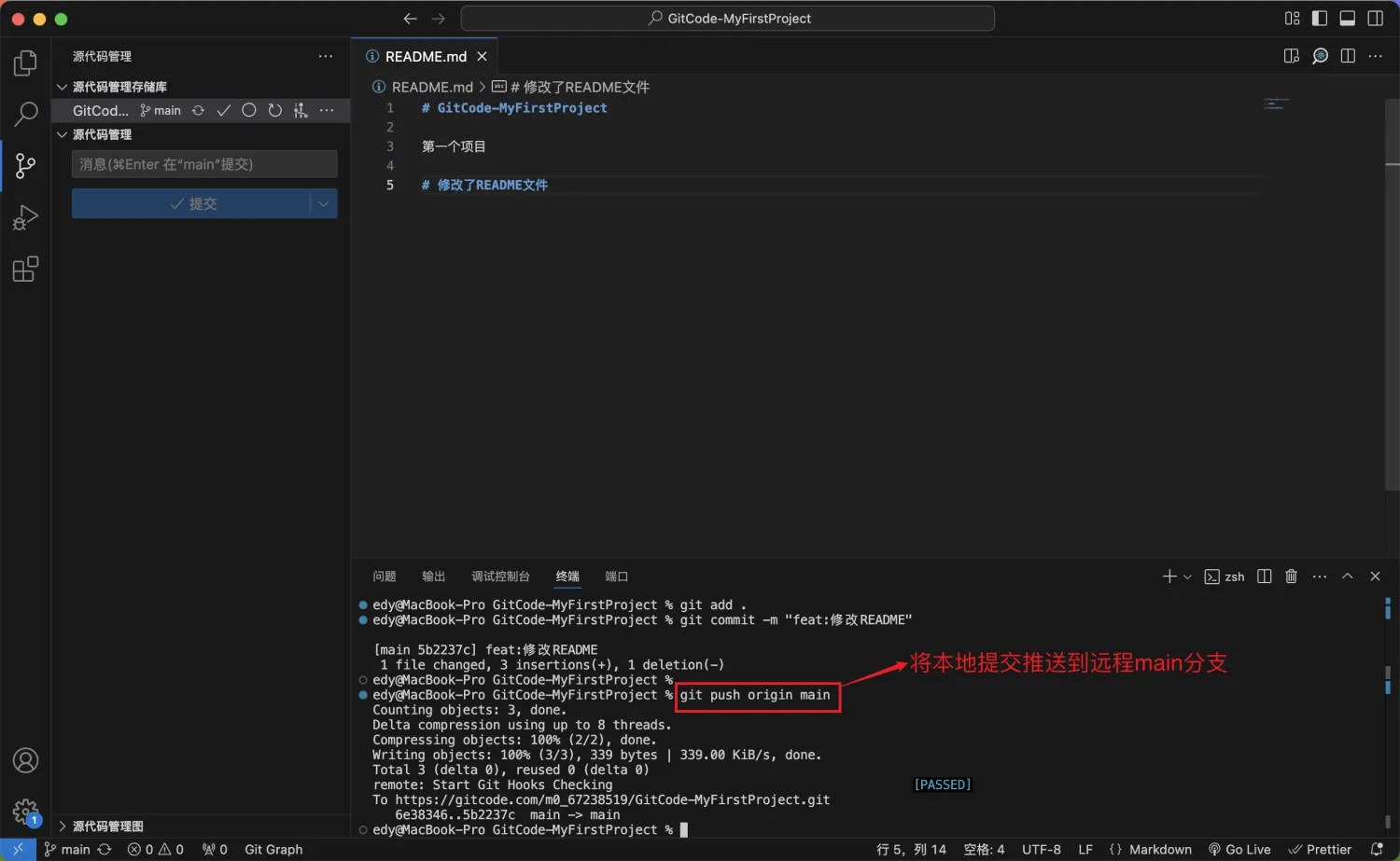
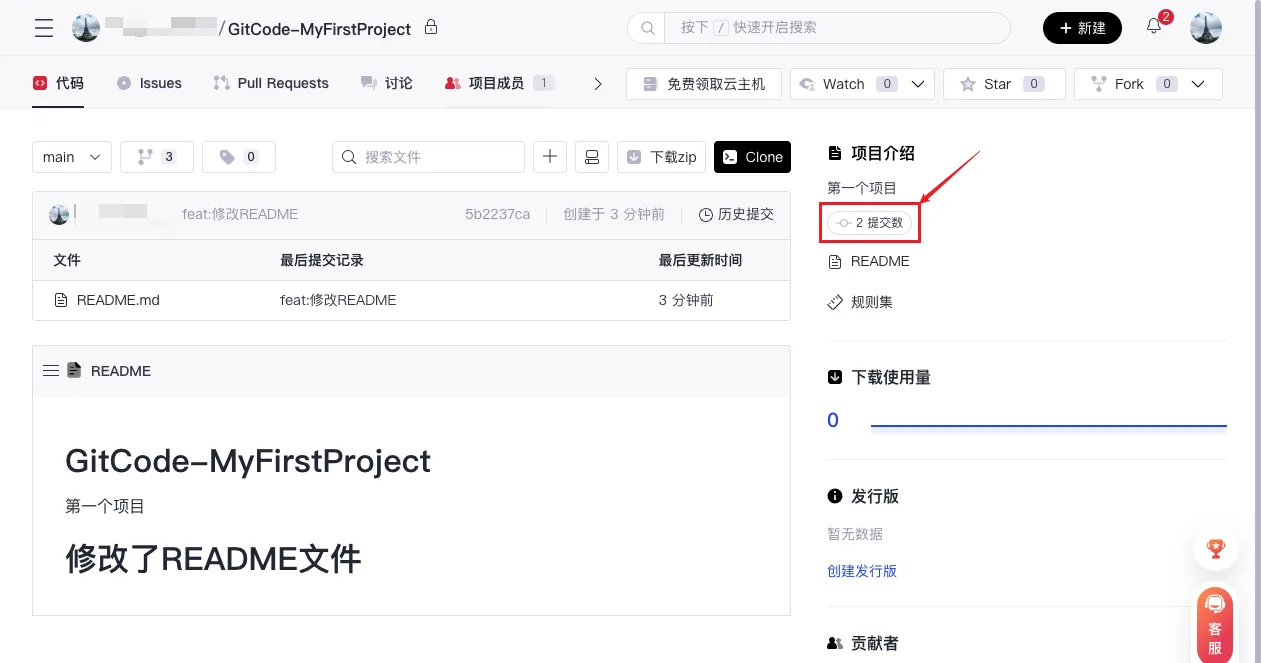
- Click the 「Commit Count」 on the project page to view the commit history:
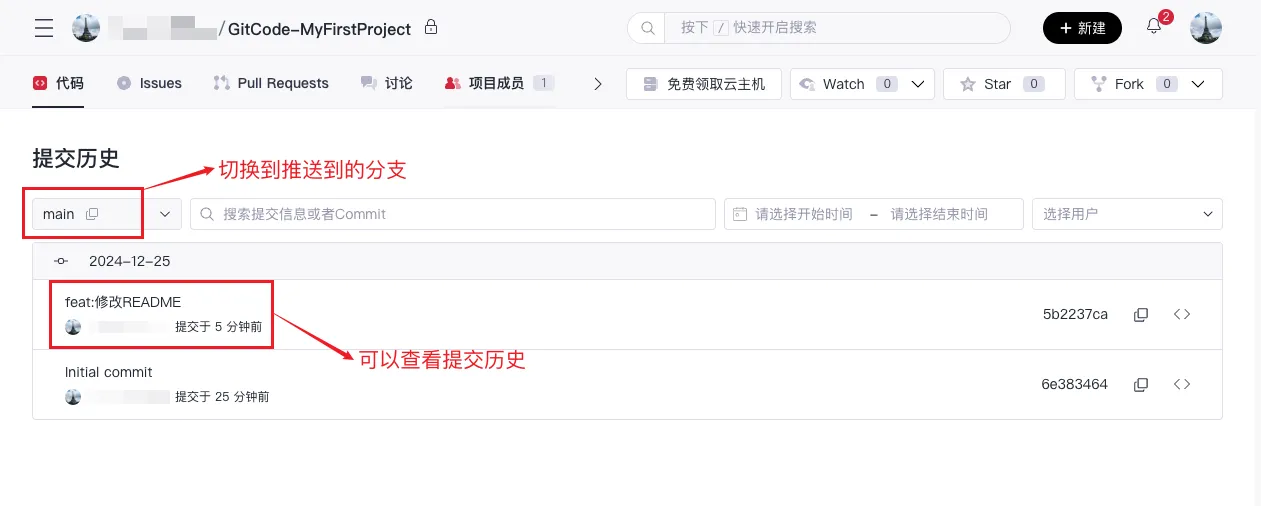
- After completing the above process, you have successfully modified the code and submitted it!
Submitting PR (Read if Collaborative Development)
Pull Request (PR) is a code collaboration mechanism. It allows developers to submit code changes to the main branch or other branches, and these changes can be merged through code review, testing, and discussion. In enterprise development or multi-person collaborative development, we need to submit PR; If you are a project manager or doing individual development, you don't need to submit PR.
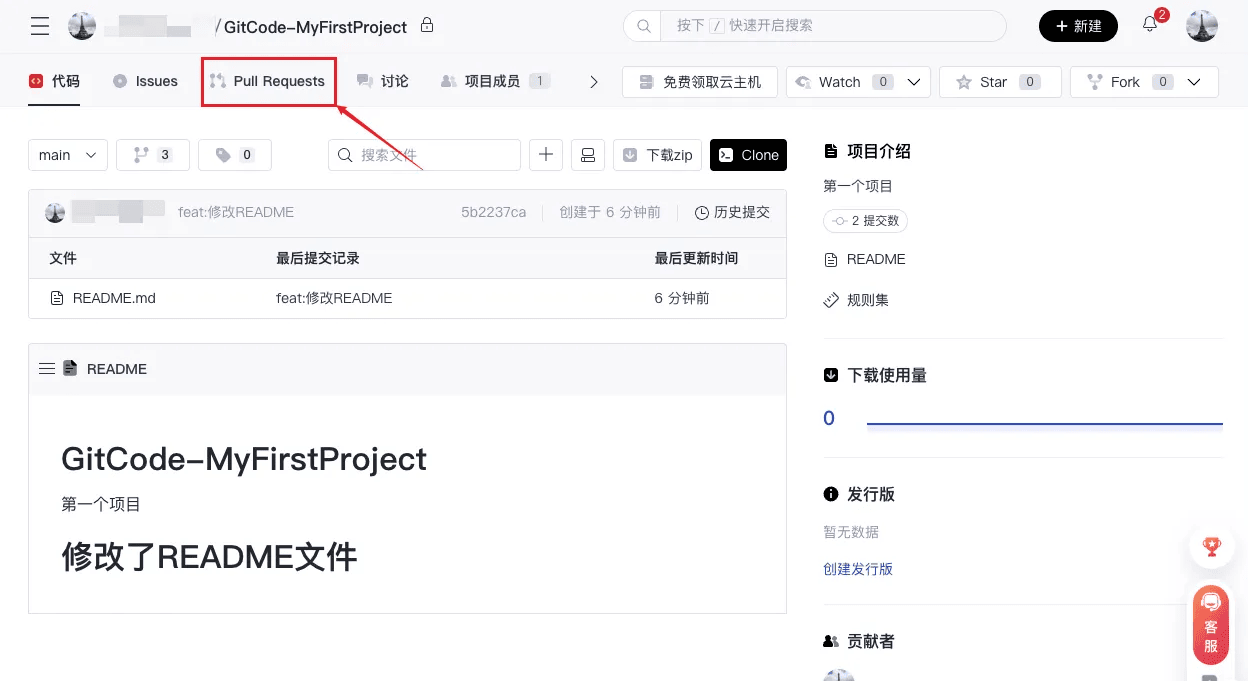
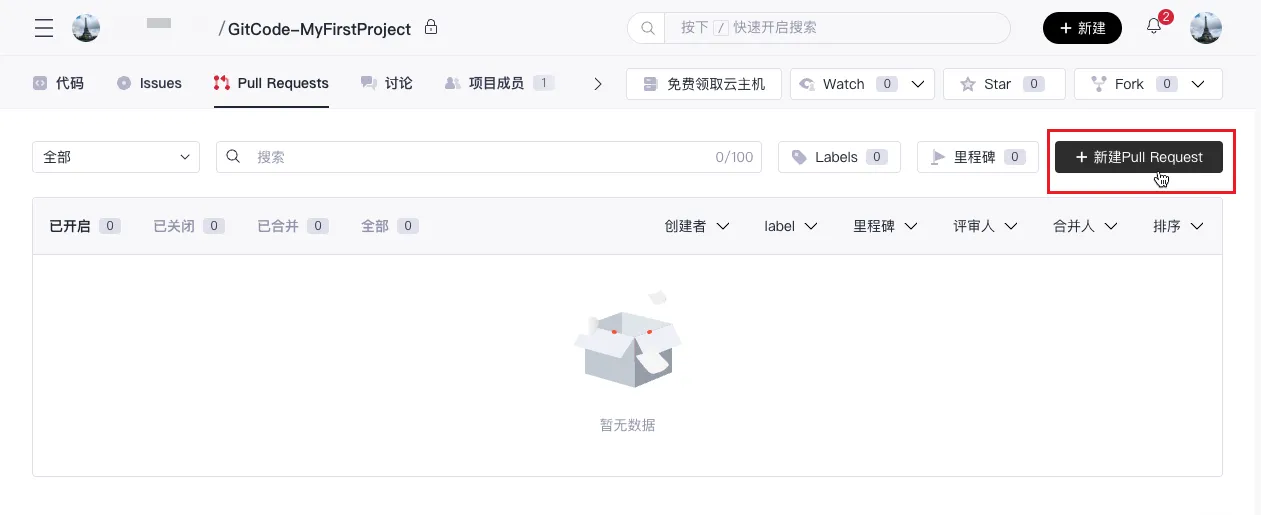
- Click 「Pull Request」 on the project page, then click 「New Pull Request」 in the top right corner.
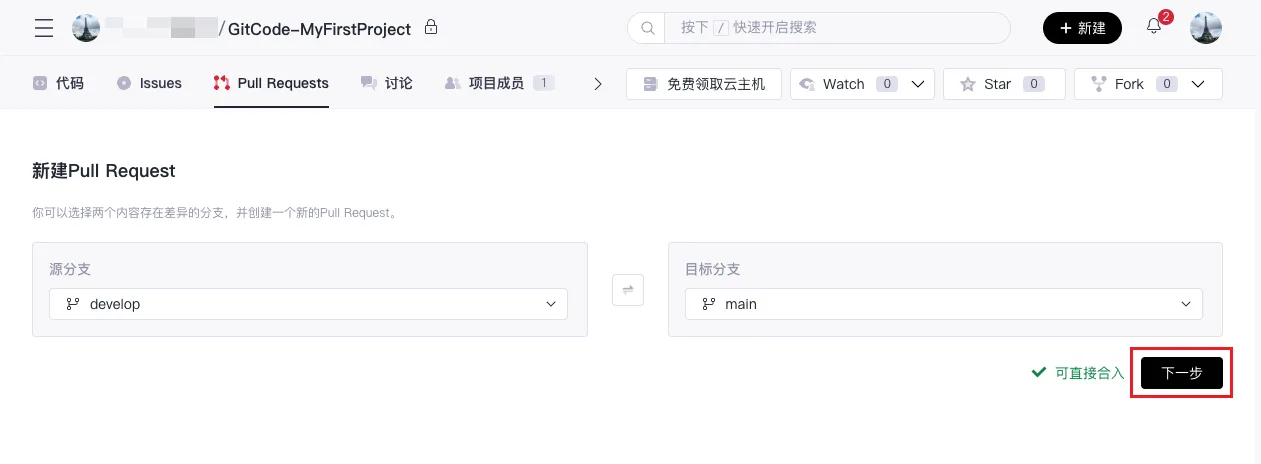
- Select the corresponding source branch (the branch where you modified the code) and target branch (the branch you want to submit the code to), then click 「Next」.
- Fill in the PR title and description, then click 「Create」 to successfully create a PR, notifying the relevant manager to review the PR. Once the review is passed, the code can be synchronized to the merge branch, and the PR process ends.
Common Git Commands
The following are common Git commands that can help users quickly master basic Git operations.
git init # Initialize a new Git repository.
git remote add origin <remote repository address>  # Add a remote repository
git remote -v                        # View remote repositories
git add <filename>   # Add a specific file
git add .          # Add all changed files
git commit -m "Commit message"   # Commit changes in the staging area and add a commit message
git log                  # Display detailed commit history
git log --oneline        # Compact mode
git status  # View the status of the working area and staging area.
git branch               # View branches
git branch <branch name>       # Create a new branch
git branch -d <branch name>    # Delete a branch
git checkout <branch name>    # Switch to a branch
git checkout -- <filename> # Restore the file to the state of the last commit
git switch <branch name>       # Switch branches
git switch -c <branch name>    # Create and switch to a new branch
git merge <branch name>       # Merge a specified branch into the current branch
git pull      # Pull code from the remote repository and merge it into the current branch
git push origin <branch name>   # Push local changes to the remote repository
git reset --soft HEAD~1   # Undo the last commit but keep the changes
git reset --hard HEAD~1   # Undo the last commit and discard the changes
git stash                 # Save uncommitted changes
git stash pop             # Restore stashed changes
git fetch                 # Fetch updates from the remote repository without merging