Add Projects to a Collection
After creating a collection, the next step is to add content to it. Just like organizing a bookshelf, you need to classify related books and materials so that users can easily find what they need.
Methods to Add Content
Method One: Add from Search Results
- Search for the model, dataset, or application you want to add on the platform
- Find the appropriate content and click into the detail page
- On the page, find the "Add to Collection" button
- Select which collection to add it to
- Click "Add" to complete
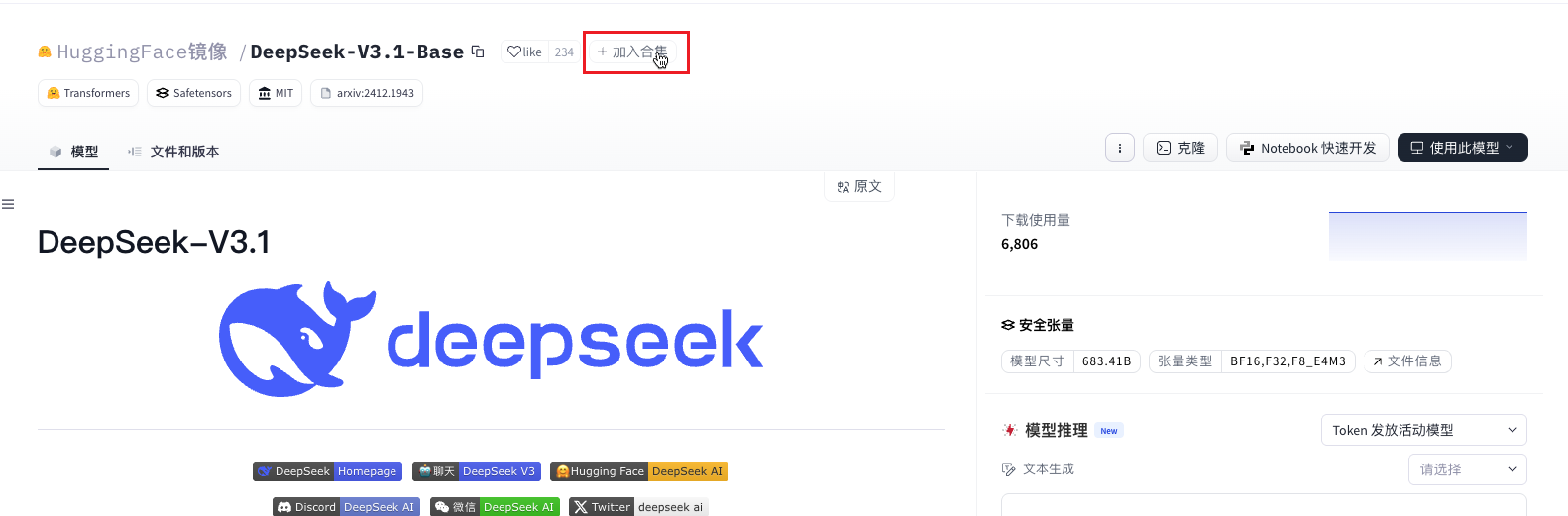
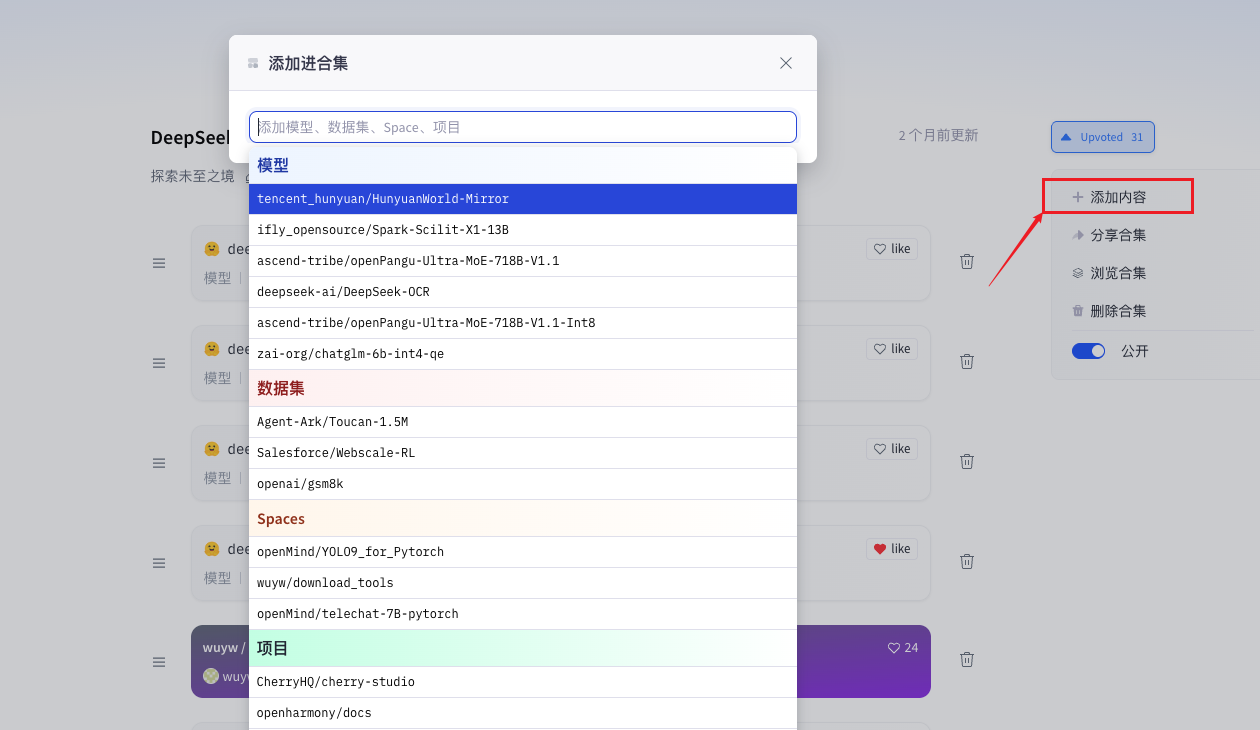
Method Two: Add from the Collection Page
- Go to your collection page
- Click the "Add Content" button
- Choose the type of content to add
- Search or browse available content
- Select the item to add
What Can Be Added
Models
What is a Model? A model is like a trained AI brain that can perform specific tasks, such as image recognition, text translation, etc.
Types of Models That Can Be Added: Image recognition models, text processing models, speech recognition models, recommendation system models.
Notes When Adding Models: Ensure the model runs properly, add usage instructions, describe the application scenarios, and provide example code.
Datasets
What is a Dataset? A dataset is a collection of data used to train AI models, such as images, text, audio, etc.
Types of Datasets That Can Be Added: Image datasets, text datasets, audio datasets, video datasets.
Notes When Adding Datasets: Explain the data source, describe the data characteristics, provide usage license, and annotate data quality.
Applications (Space)
What is an Application? An application is a ready-to-use AI tool that users can use without technical knowledge.
Types of Applications That Can Be Added: Image processing tools, text analysis tools, voice conversion tools, data visualization tools.
Notes When Adding Applications: Ensure the application can be accessed normally, provide usage instructions, explain the features, and add usage examples.
Documents
What is a Document? Documents include tutorial texts, instructions, code examples, etc.
Types of Documents That Can Be Added:
- Getting Started Tutorials
- Usage Instructions
- Code Examples
- Frequently Asked Questions
Notes When Adding Documents:
- The content should be clear and easy to understand
- The format should be standardized and consistent
- Keep it updated and maintained regularly
- Add a table of contents for navigation
How to Organize Content
Organize by Learning Order
Just like learning a course, the content should be progressive:
Lesson 1: Basic Concepts
├── Concept Introduction
├── Environment Setup
└── First Program

Lesson 2: Advanced Techniques
├── Advanced Features
├── Practical Applications
└── Practice Assignments

Lesson 3: Practical Projects
├── Project Introduction
├── Implementation Steps
└── Results Display
Organize by Function Category
Group related functions together:
Image Processing Collection
├── Image Classification
│   ├── Model
│   ├── Dataset
│   └── Application
├── Object Detection
│   ├── Model
│   ├── Dataset
│   └── Application
└── Image Segmentation
    ├── Model
    ├── Dataset
    └── Application
Organize by Difficulty Level
Let users choose based on their level:
Beginner Level
├── Basic Concepts
├── Simple Examples
└── Operation Guide

Intermediate Level
├── Advanced Techniques
├── Practical Cases
└── Optimization Methods

Expert Level
├── Deep Principles
├── Cutting-Edge Technologies
└── Innovative Applications
Tips for Adding Content
Give Content Good Names
Give Content Good Names: Use simple and clear names, avoid technical jargon, ensure the name explains the content's purpose, and you can use Chinese names.
Write Clear Descriptions: Briefly introduce what the content is, state the suitable user level, list main features, and provide usage suggestions.
Add Appropriate Tags: Choose 3–5 most relevant tags, use common words, consider user search habits, and avoid overly technical terms.
Managing Added Content
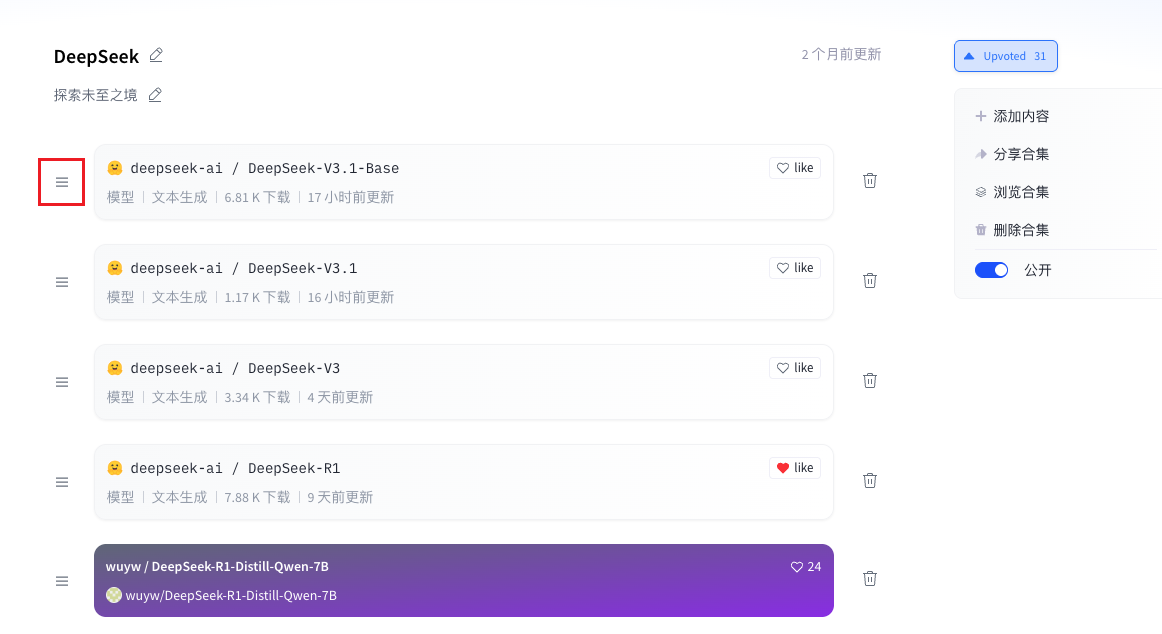
Adjust Content Order
- Find the content you want to adjust on the collection page
- Select the "Move" button
- Drag it to a new location
Edit Content Information
- Click the "Edit" button on the right side of the content
- Modify the title, description, or tags
- Click the "Save" button
- Wait for the system to update
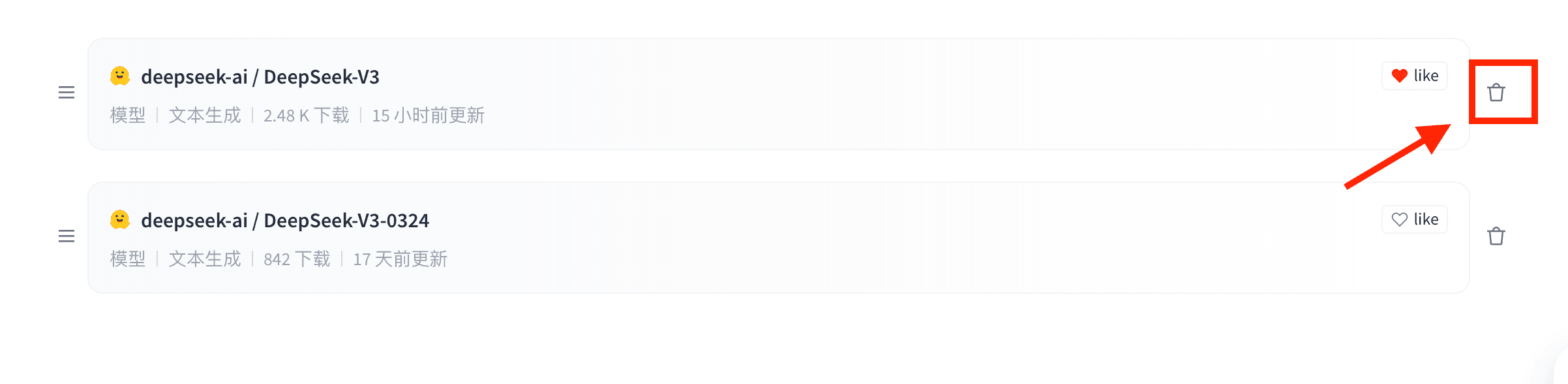
Remove Unneeded Content
- Click the "More" button on the right side of the content
- Select "Remove from Collection"
- Confirm the removal operation
- Note: After removal, the content still exists on the platform, but it will be removed from the collection
Frequently Asked Questions
What to Do If Addition Fails?
- Check if the network connection is normal
- Confirm whether the content is still available
- Try refreshing the page and adding again
- Contact customer support for help
Can I Add Others' Content?
Yes. All public content on the platform can be added to your collection, but keep in mind:
- Respect the original author
- Do not modify the original content
- You can add your own explanations and comments
- Follow the platform's usage guidelines
Will the Content Automatically Update After Being Added?
No. If the original author updates the content, you need to manually update the content in the collection:
- Go to the collection page
- Find the content that needs updating
- Click the "Update" button
- Choose the latest version
Usage Suggestions
Regular Organization
Regular Organization: Check your collection content once a month, remove outdated or invalid content, add relevant new content, and optimize the content structure.
Pay Attention to User Feedback: View user comments, understand usage conditions, improve content according to feedback, and promptly answer questions.
Continuous Improvement: Learn from other excellent collections, try different content organization methods, collect user suggestions, and continuously improve the quality of the collection.