Collection Visibility
Collection visibility is like setting a lock on a room door, determining who can enter and use your collection. Choosing the right visibility settings can protect your content while allowing those who need it to find them.
Visibility Options
Public Collection
What is a public collection? A public collection is like placing a book in a library, where everyone can find, view, and use it.
When to use it? Share learning materials with more people, showcase your project results, build a professional image for yourself or your team, and seek community feedback and suggestions.
Features of a public collection: Everyone can search for it, it can be shared via link, it supports likes, comments, and favorites, and it may be recommended to other users.
Notes: Ensure the content is suitable for public sharing, pay attention to protecting personal privacy information, comply with platform usage policies, and respond to user comments promptly.
Private Collection
What is a private collection? A private collection is like your personal notebook, which only you can see and use.
When to use it? Personal study notes, unfinished projects, content containing sensitive information, or works still under development.
Features of a private collection: Only you can see it, it does not appear in search results, it cannot be shared via link, and you have full control over access rights.
Usage tips: Regularly back up important content, you can change it to public at any time, and it is suitable as a workspace.
How to Set Visibility
Set During Creation
- On the create collection page, find the "Visibility" option
- Choose the visibility type you want
- Click the "Create" button to complete the setup
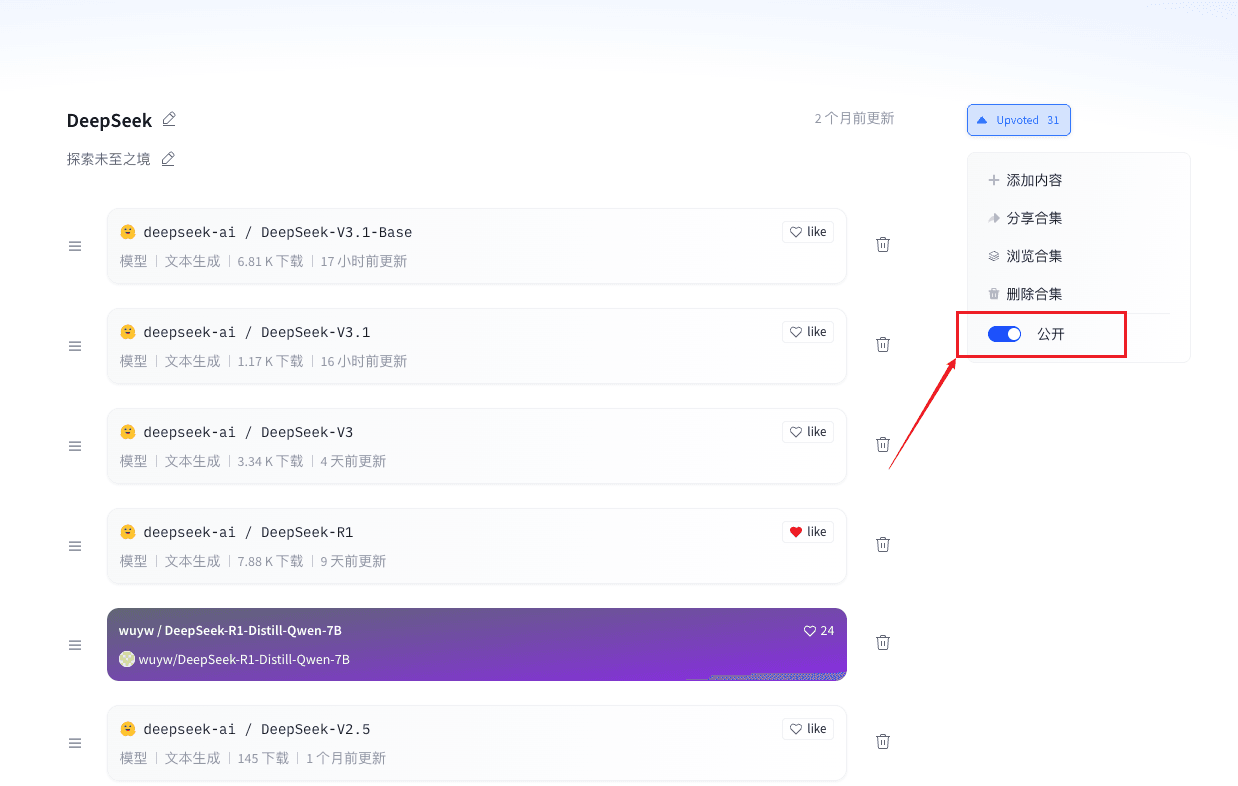
Modify an Existing Collection
- Go to your collection page
- Look at the top right corner
- Find the "Visibility" option
- Choose the new visibility setting
Security Tips
Protect Your Privacy
- Do not share private collections that contain personal information
- Regularly check who has access
- Remove unnecessary access permissions promptly
- Use a strong password to protect your account
Content Safety
- Ensure shared content does not violate platform rules
- Be aware of copyright issues
- Do not share malicious code or harmful content
- Regularly check if the content is still appropriate
Frequently Asked Questions
Can I change a public collection back to private?
Yes. You can change the visibility at any time in the settings, from public to private, or from private to public.
Can private collections be found by search engines?
No. Private collections do not appear in search results, only you and those you have invited can see them.
Can I set part of the content to be public?
Currently, it is not possible to set part of the content to be public. The visibility setting applies to the entire collection. If you need part of it to be public, it is recommended to create two collections.
Usage Tips
Choose the Right Visibility
Choose Public When:
- The content is complete
- You want to get feedback
- You want to share knowledge
- You want to build a professional image
Choose Private When:
- The content is still being refined
- It contains sensitive information
- It is personal study notes
- It is internal team documents
Regularly Check Settings
- Check access permissions once a month
- Remove unnecessary permissions promptly
- Adjust visibility according to content changes
- Pay attention to user feedback and suggestions